MEDCLOCK Setup Guide
What This Device Does
MedClock helps remind you when medication needs to be taken.
By enabling the premium version, you also get SMS notifications to a selected contact.
In the Box
- MedClock device
- USB power cable
- Instruction card
Step 1 – Power On
- Plug the device into power using the USB cable.
- The device will turn on automatically and display the user settings page.
Step 2 – Connect to WiFi
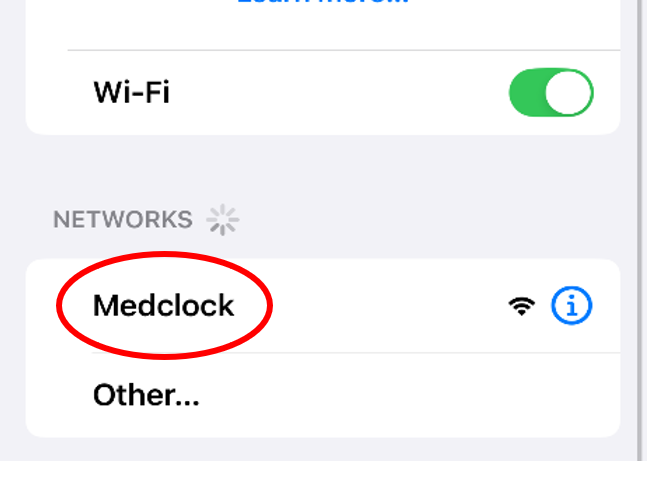
- On your phone, open WiFi settings and connect to the network MEDCLOCK.
-
Wait about 10 seconds. Your phone should open the setup page automatically.
If prompted, press “Allow device to connect to network”.
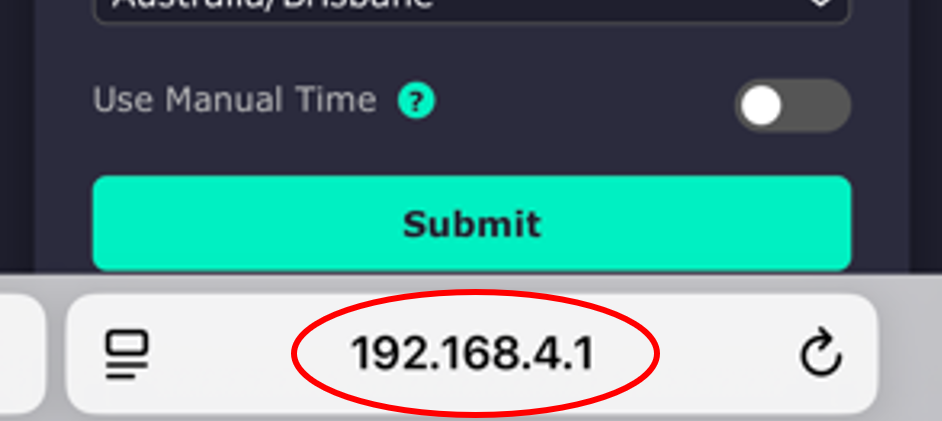
If it does not open automatically, open a browser and go to 192.168.4.1.
Step 3 – Enter Your Details (Subscription Users)
For subscription members who want SMS alerts, enter:
- User’s name
- Phone number for alerts
- Subscription key (www.vexian.com.au/MedClock)
- WiFi name and password
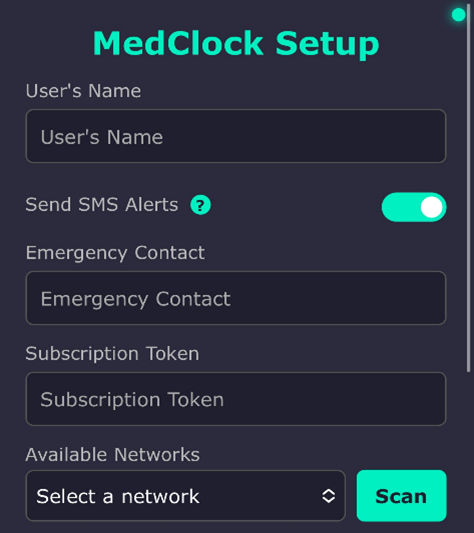
Wait for MedClock to scan WiFi networks. If your network is not visible, press Scan again and wait 10 seconds.
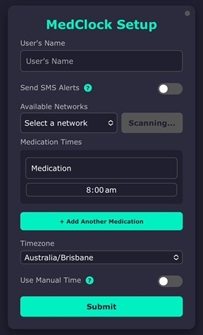
- Enter up to 10 medications with times
- First and last medication time sends an SMS alert; others only alarm
- Set timezone for automatic correction
- Use Manual Time only if syncing fails
- Press Submit
Step 3 – Enter Your Details (Non-Subscription Users)
- User’s name
- Do not enable “Send SMS Alerts” without a valid subscription key
- WiFi name and password
- Up to 10 medication times
- Timezone for automatic correction
- Use Manual Time only if syncing fails or WiFi is not used
Step 4 – Test
- Medication can be acknowledged up to 3 hours early.
- Check all medications display correctly.
- Press the MedClock button once.
- If this is the earliest alarm and you use a subscription, a confirmation SMS should be sent.
- Setup is complete ✅
Using MedClock
- Press the button to acknowledge medication reminders
- Reminders can be acknowledged up to 3 hours early
- Subscription users receive two SMS messages per day
Important Notes
- Keep the device connected to WiFi
- Do not share your subscription key
- If WiFi details change, repeat setup
- To change settings, unplug and re-plug the device
Important Disclaimer
MedClock is a reminder aid only and not a medical or lifesaving device.
Always follow prescribed medication plans.
Need Help?
🌐 Website: www.vexian.com.au/MedClock
📧 Email: Sales@Vexian.com